How to turn your logo into stickers
Send the sticker shop a logo with no background: the SVG or the transparent 2048 PNG. The shop draws the cut line around your logo’s shape. If your file has a white box behind the logo, you get a square sticker with a white box on it. Both files are in the free kit.
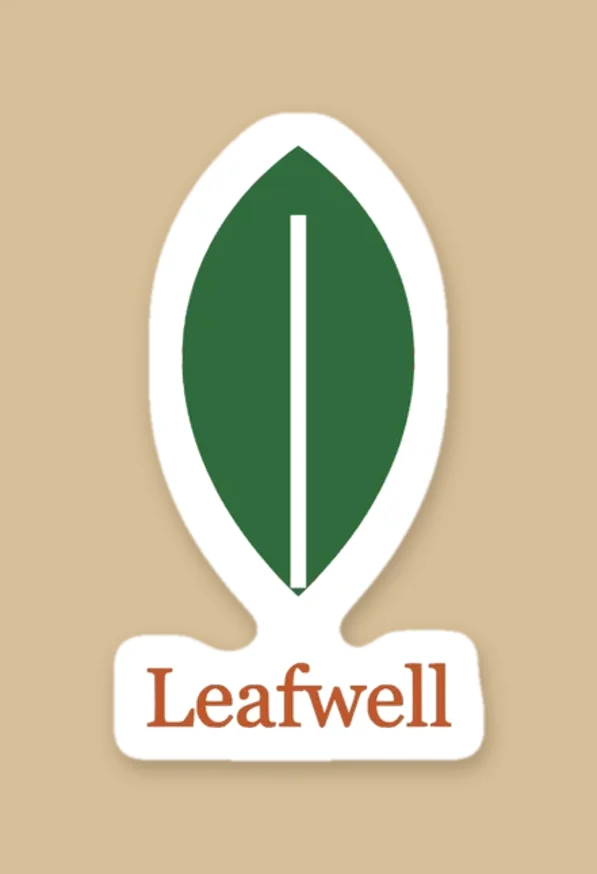
A die-cut sticker
Which file for which sticker
| Sticker | Send this file |
|---|---|
| Die-cut, cut around the shape | yourlogo.svg or png/yourlogo-2048.png |
| Round or square, logo on a colour | social/profile-picture.png: already square, logo centred on its colour |
| Labels on boxes and jars | png/yourlogo-2048.png, or the one-colour yourlogo-black.svg for kraft paper |
Step by step
- Make your kit at logoready.app and download the zip.
- On the sticker shop’s site, choose the shape: die-cut, round or square.
- Upload the file from the table above.
- Check the proof. The cut line should follow your logo, with no white box inside it.
Small stickers
On a sticker smaller than about 5 cm, thin lines and small lettering get hard to read. For a small round or square sticker, the kit’s app icon favicon/icon-512.png often reads better: it shows just the symbol when your logo has one, on a square of its colour. It isn’t cut out, so don’t use it for die-cut stickers.
Questions
Why did my sticker come out with a white square?
The file had a painted white background. Use the transparent PNG or the SVG from the kit.
What’s a die-cut sticker?
A sticker cut around the outline of your logo instead of a square or circle.
Which size should I order?
For laptops and boxes, 5 to 8 cm is common. The 2048 PNG is sharp up to about 17 cm on its longest side; the SVG at any size.
Do I need an account?
No. Drop the image, download the zip.